


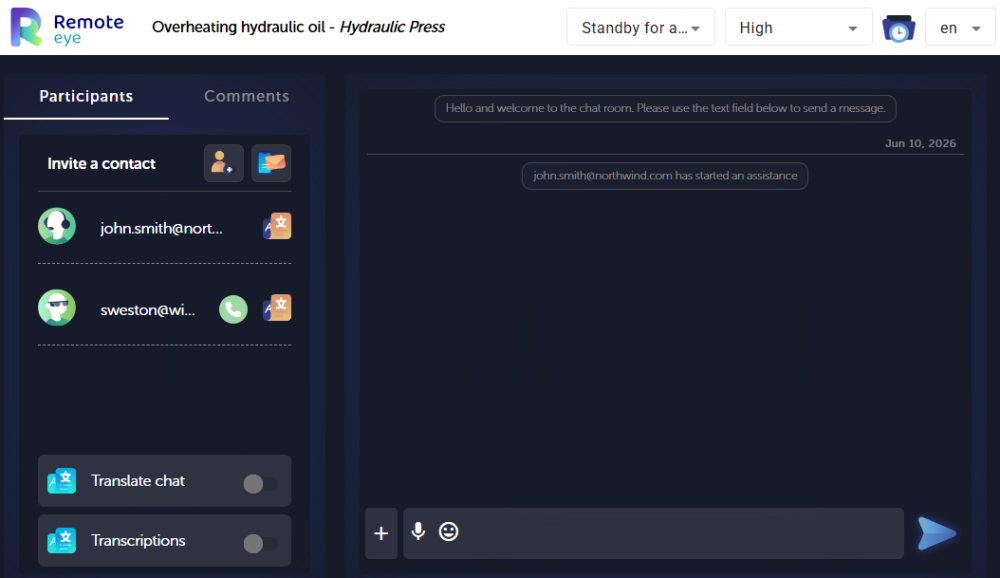
- Upon entering the room, both the Expert and the Operator are confronted with a chat.
- The Operator can write and read the Expert’s text messages.
- Control resides with the Expert, who is the one who knows the platform. Remote eye and Remote eye Direct are designed so that the Operator does not have to worry about training or learning how to use the application, but only about receiving assistance.
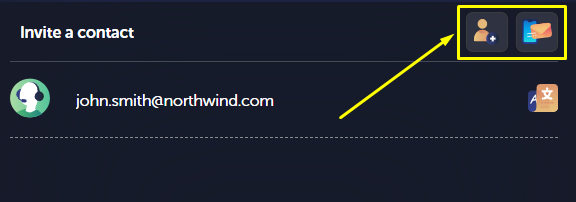
Invite a technician to the chat
Click on the invite buttons to invite an added contact or send an email, sms, or a link to someone who isn’t saved as a contact yet to join the asset or assistance.
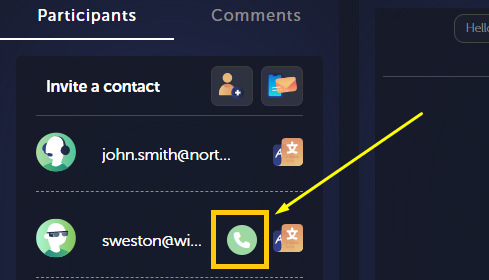
Call a technician
To start a video call with another technician, click on the call button on the participants list.
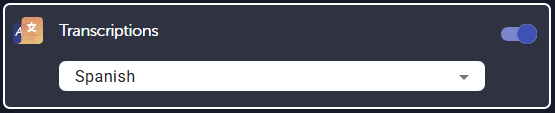
The “transcriptions” toggle activates the voice transcription during the video call. Select the language in which the conversation is going to be held for it to work.
Chat functionalities
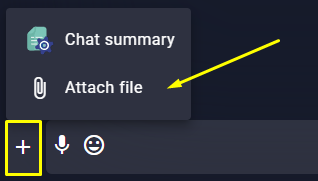
Attach photos, videos, PDFs, or any file you want to send by clicking on the “+” to the left of the chat box and clicking on “attach file”.
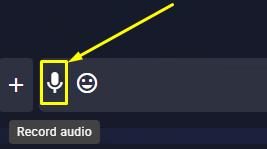
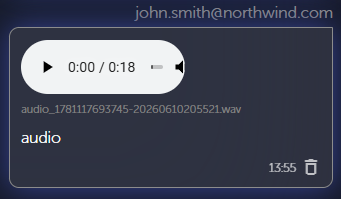
To record a voice note click on the “record audio” button and start talking.
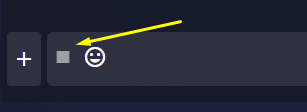
The icon is going to change into a square signaling that it’s recording. Click on it to finish recording.
You’ll see the following text showing that your audio is attached to your next message.
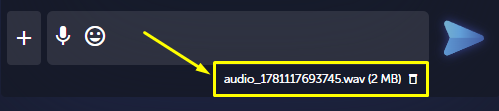
Send it with or without text for it to appear on the chat.
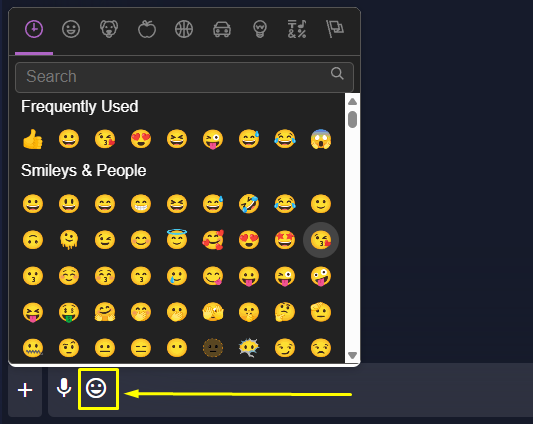
Add an emoji clicking on the smiley face to the left of the chatbox.
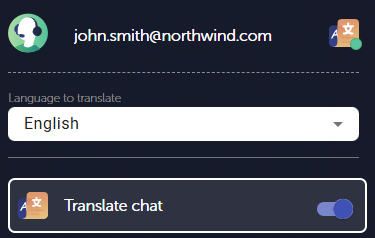
Translate the chat messages
To activate the chat translation, activate the “translate chat” toggle button and select the language in which you want that message to be translated to. Now everything that person says will be translated to the selected language.
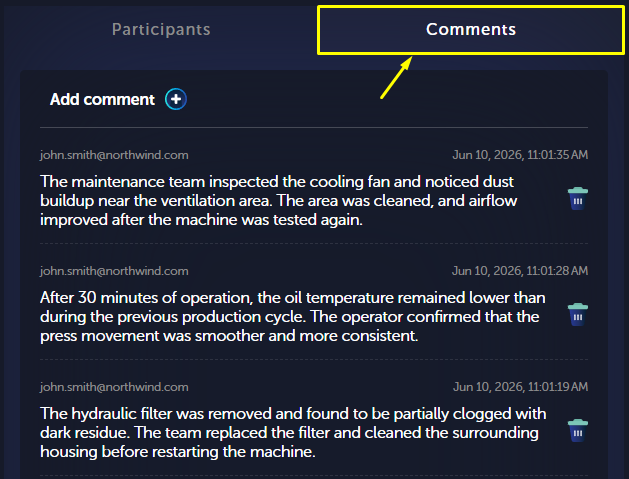
Add comments
The “Comments” tab lets you write notes about the machine that will be pinned and can be looked at by other experts that join the asset or assistance, instead of having to look for key information in the chat.
To add a comment just click on the “Add comment +” button.
Create a summary
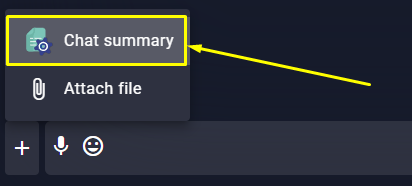
Generate a summary of the last messages between two dates by clicking on the “+” to the left of the chatbox and then on “Chat summary”.
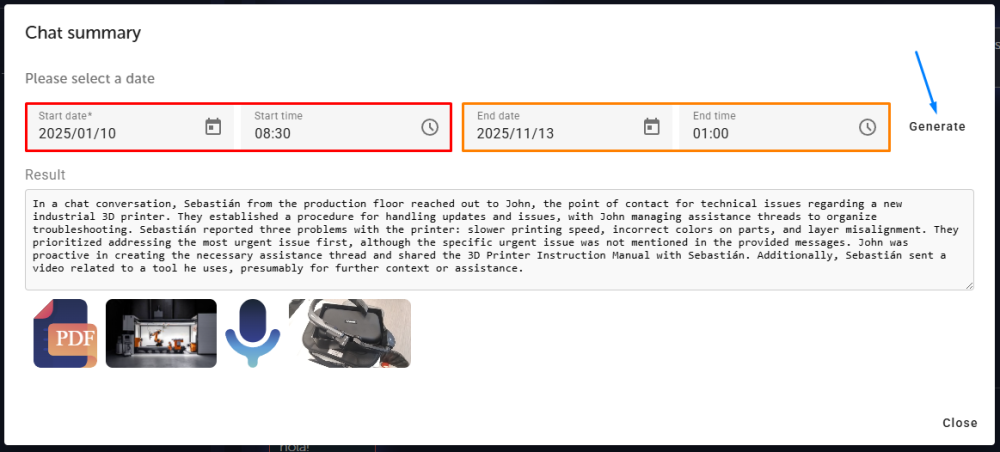
Select a start date and, optionally, an end date. Then click “Generate” to create a summary of the conversation and the files shared during that period.
Feedback

Post your comment on this topic.