
1. To start using Helpdesk log into your Expert Panel at expert.remoteeye.com
2. Click on the ‘Assets’ button.
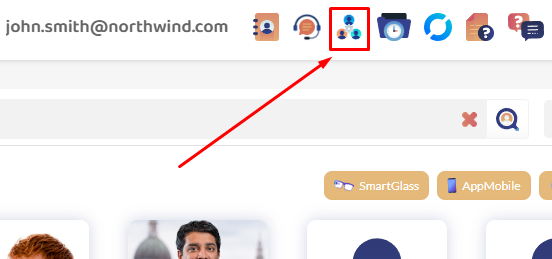
3. Create a new room clicking on the top left “+ sign” button that looks like this:

In Helpdesk, an “asset” can represent various entities, such as a client, a machine, or a dealership. However, it does not correspond to specific issues or cases. Instead, an asset serves as a central hub where multiple cases or assistance sessions related to that entity can be managed. Each “assistance” instance within the room addresses a particular problem or task associated with that entity.
Put a name and a description to the asset that identifies that entity and can be easily found by your experts.
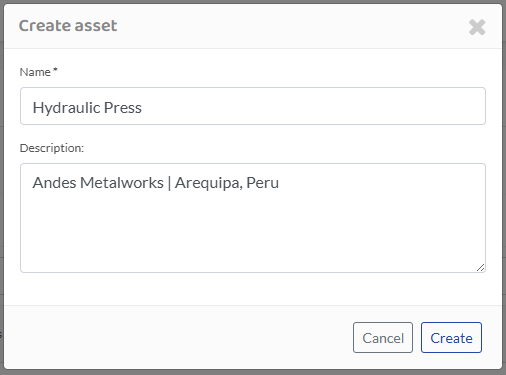
This asset will appear as a new row with different options.

Open the asset’s chat on a new tab.

Add an existing contact to the asset.

Invite a new person to the asset.

Edit the asset’s name.

Delete the asset.

4. Inside the asset, experts and technicians will be able to communicate via text, audio clips, share images, videos, PDFs, and jump into a video call with the classic Remote Eye assistance features.
You can also choose to translate text and audios so experts and technicians can communicate with anyone in the world.
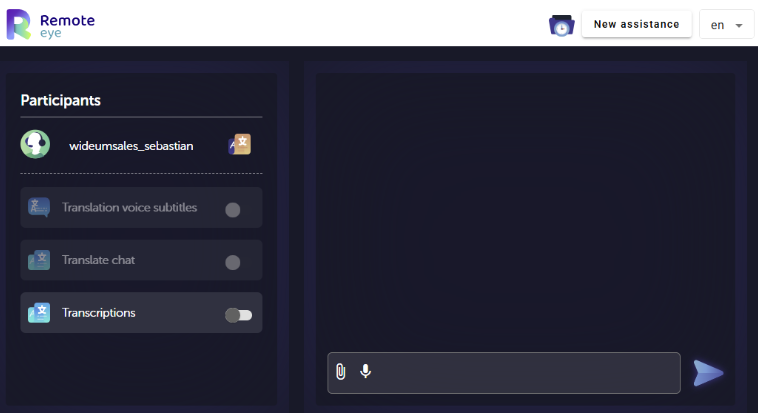
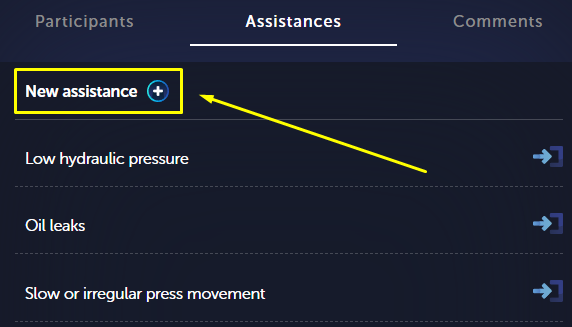
5. The most important thing to organize information inside an asset is to start and close the assistance. Each “assistance” instance within the asset addresses a particular problem or task associated with that entity, which then generates a report.
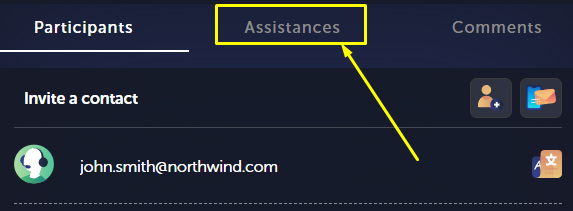
Fill the assistance’s information and click on “Accept” to create a new one.
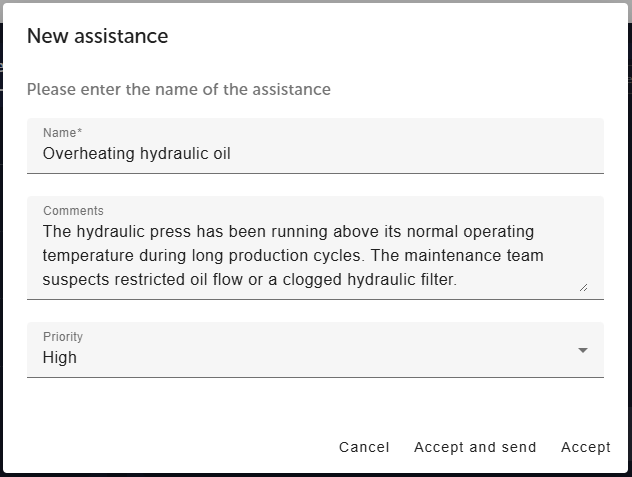
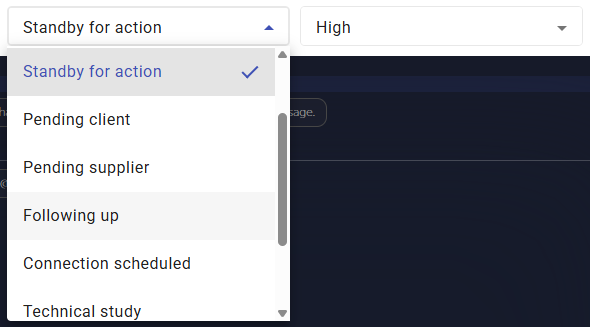
You will be able to change the assistance’s status and priority by clicking on the upper bar dropdown lists.
You can look at all the ongoing assistance by clicking on the following button:

Réaction

Laissez votre avis sur ce sujet.